
Viewing Live Activity in zizq top
The Zizq CLI ships with a built-in terminal UI that shows your queues operating
in real-time. Run zizq top to launch the terminal UI.
zizq top
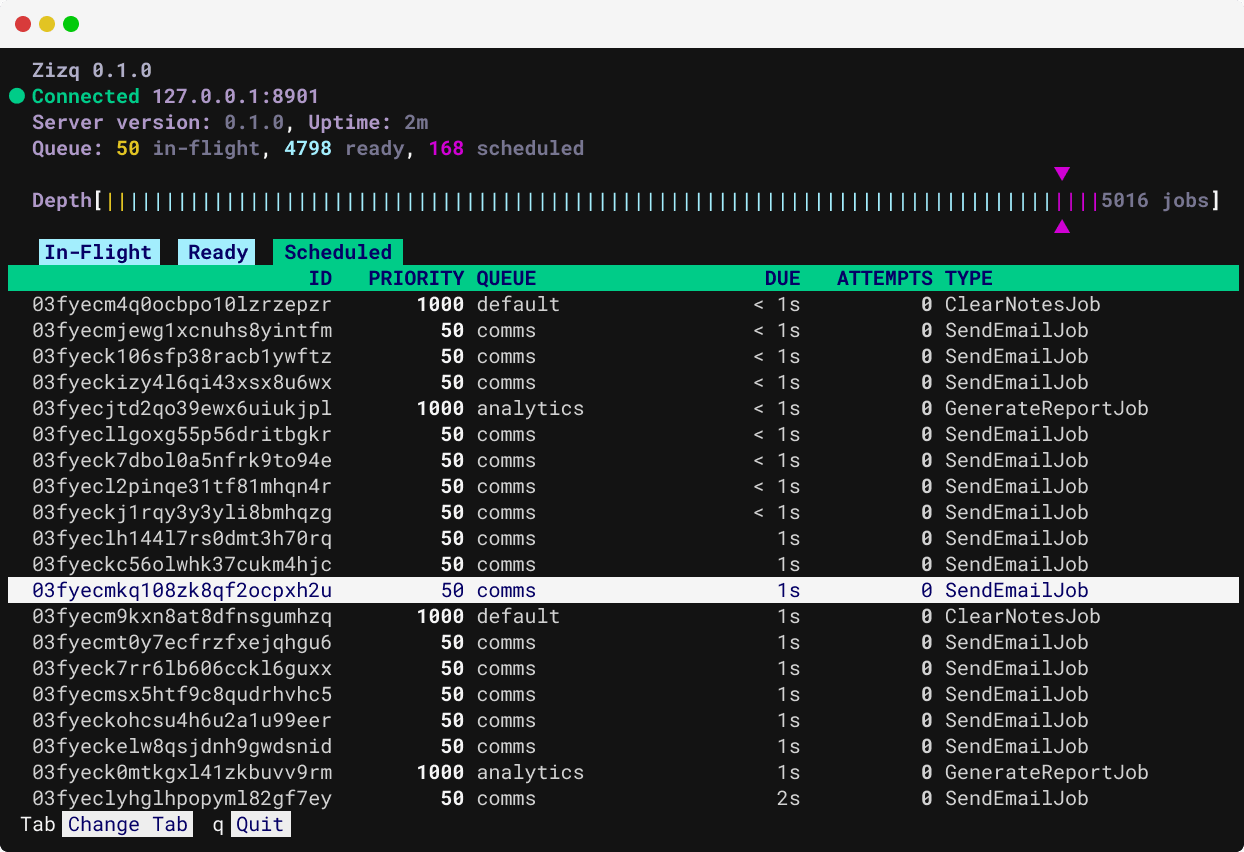
UI Layout
The terminal UI includes a number of components which are described here.
Header Section
At the top of the screen is the connection status. Ths displays the URL that
zizq top is connected, or connecting to, along with the version of zizq top
itself, and the version of Zizq running on the sever. Uptime of the Zizq server
is also displayed here.
We then have some basic statistics showing the number of jobs in various lifecycle states.
Below the lifeycle states is the depth indicator, which is similar to a scrollbar. As you scroll within the list(s) on each tab, the markers indicate where you are within the overall queue, which provides a clear visual representation of the queue depth.
Function Bar
At the bottom of the view is a function bar which provides hints for some key functions. Most easily discoverable controls (e.g. arrow keys) are not displayed here.
Content Section
There are currently three tabs in the content section which occupies most of the space:
- In-Flight
- Ready
- Scheduled
These are essentially ordered by the reverse lifecycle of a job while the job
is active. Press Tab or Shift-Tab to switch between the tabs, and use the
arrow keys to navigate within each tab.
The content section can be split to show both the basic list and a detail panel which includes more detail such as the payload and full timestamps.
Specifying the Connection
zizq top works by connecting to an
Admin API which runs on a different
port number to the Primary API
so that it can be secured differently. By default zizq top will attempt to
connect to http://localhost:8901 which is the default and what is likely
configured when Zizq is running locally. In production environments you may
need to specify a different host or port number, and/or URL scheme. Provide the
--url flag (or the ZIZQ_ADMIN_URL environment variable) when starting
zizq top in order to connect to a different endpoint.
zizq top --url https://your.server.host:8901
The the Admin API has been secured with Mutual TLS, specify --client-cert
and --client-key (or ZIZQ_ADMIN_TLS_CLIENT_CERT and
ZIZQ_ADMIN_TLS_CLIENT_KEY) to connect with your client certificate.
UI Controls
All interaction with the terminal UI is driven through the keyboard. Some— but not all— hints are displayed in the function bar at the bottom of the view. We cover the possible interactions in detail here.
Exiting the Terminal UI
zizq top switches to the alternate screen and takes over the terminal window.
To exit, press q, or Ctrl-C.
Scrolling the Job List
If the list exceeds the size of the viewport, use the Up, Down, PageUp
and PageDown keys to scroll within the list. The Left and Right arrow
keys can be used to scroll horizontally if the viewport is sized narrower than
the list.
Additionally, pressing g or Home jumps to the start of the list, and
pressing G or End jumps to the end of the list.
Switching Tabs
There are a series of tabs in the terminal UI displaying jobs in different
stages of their lifecycle. To switch between them, press Tab or Shift-Tab.
Toggling the Detail Panel
By default, only basic job info is displayed on each tab. To view full details
including the payload of the job, press i. This splits the view, presenting
the details in a panel below the list. As the job beneath the cursor changes,
the details displayed in the detail panel are updated.
Press i again to close the detail panel.